Why Async Video Tools That Cannot Edit Before You Share Are Costing Your Team Reshoots
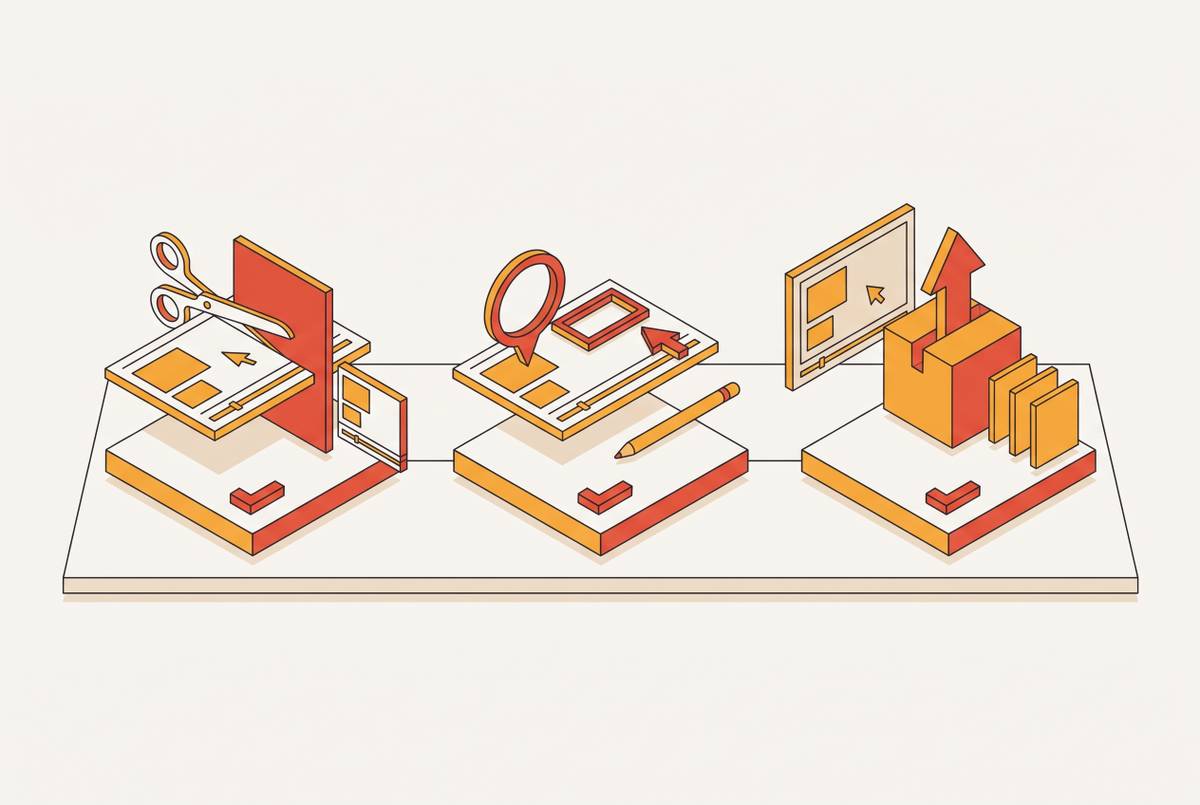
Fixing takes in the tool, not re-recording them, is what makes async video save time.
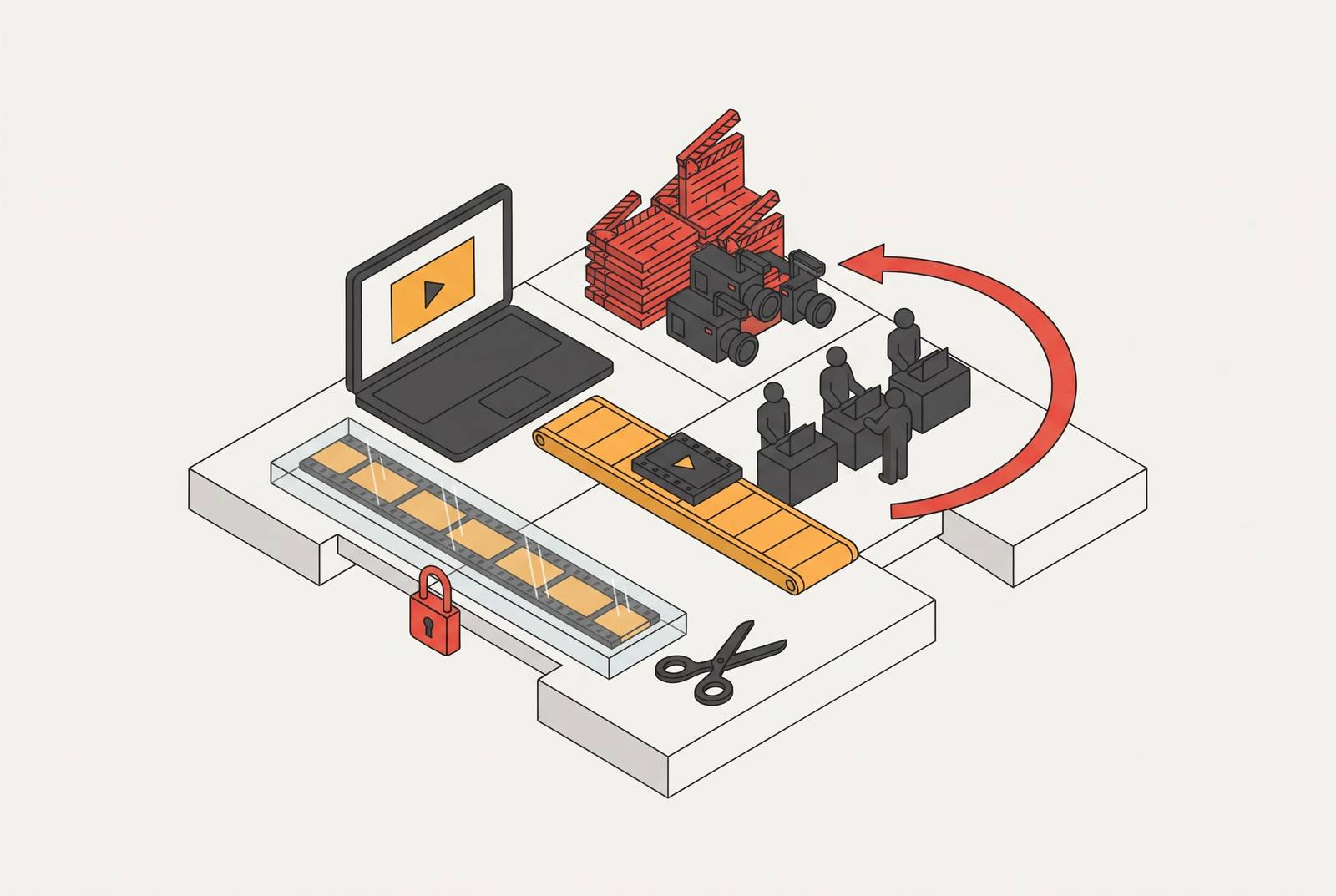
Async video saves time only when a mistake can be fixed before the recording is shared. A screen recorder with a built-in editor lets teams repair a take instead of repeating it, while transcript-based editing and AI-assisted cleanup make those repairs easier for non-editors. The useful buying test is simple. What can someone fix without leaving the tool?
Why async video tools create a reshoot loop instead of saving time
Sending a recording in place of a meeting sounds so simple. Capture the screen, explain the point, send a link, and get back to work. But that promise assumes the first take is ready for an audience. When a tool only records and shares, a stumble leaves the creator with a choice between sending a rough take and doing the whole thing again. The meeting has disappeared, but its time bill has found a new address.
That is a poor trade for professionals already managing a heavy meeting load. Raw recordings are rarely ready to share untouched, because speaking clearly while demonstrating a process takes attention. A pause, repetition, or distraction does not mean the explanation has failed. Yet without an easy editing path, restarting becomes the path of least resistance.
What actually goes wrong in a raw recording that editing could fix
Most flaws in a raw take are editing problems. Filler words, long pauses, repeated lines, uneven energy, and distracting background activity can all make a useful explanation feel unfinished. None automatically calls for a reshoot. The diagnosis often goes wrong when the creator judges the recording as a single performance. One awkward sentence gets the entire take sent to the bin.
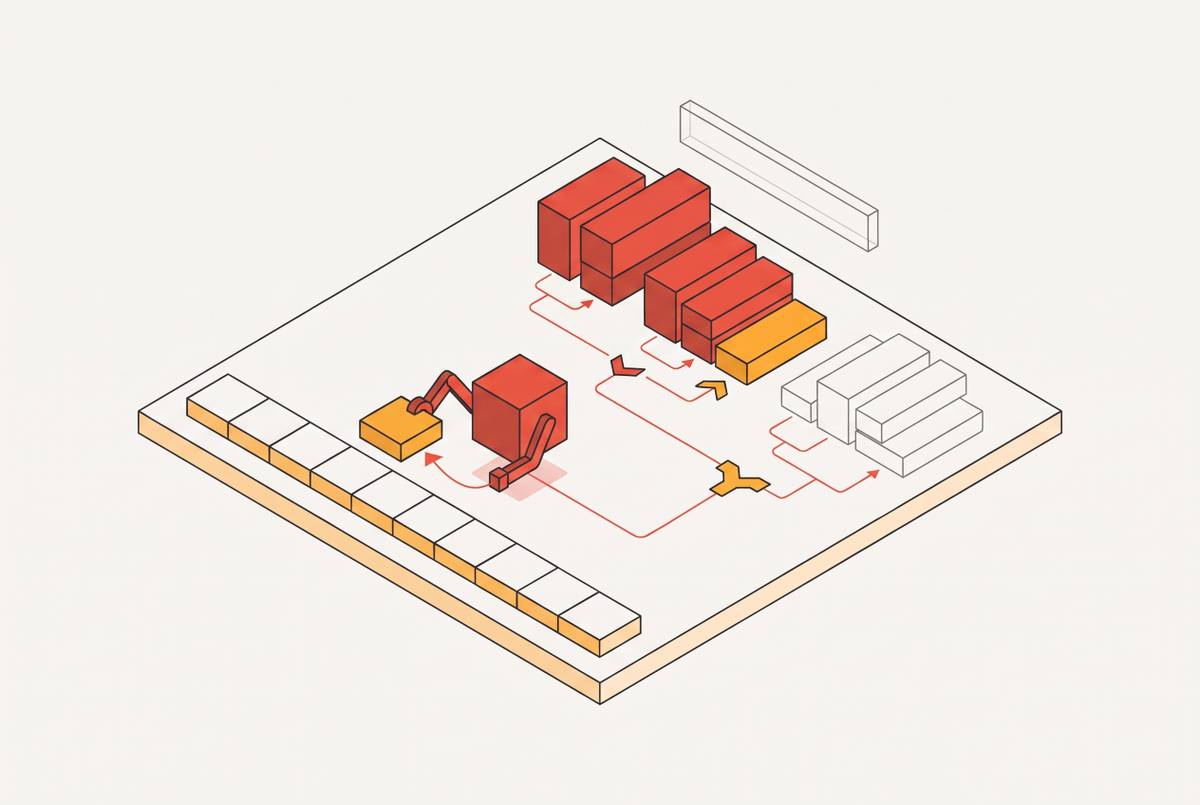
A targeted edit changes the scale of that decision. Removing a mistaken word or sentence leaves the rest of the explanation intact, while combining strong sections from different recordings can produce a better result than chasing one flawless take. The clearest introduction may belong with another take’s strongest explanation and a third take’s most engaging close. B-roll, screen recordings, or punch-ins can cover visible jump cuts without demanding another performance.
Audio cleanup, noise reduction, and leveling can rescue material that sounds rough but remains technically recoverable. There are real limits to repair, though. Re-recording is sensible when information is factually wrong, a key point is missing entirely, audio is severely clipped beyond repair, or fixing the material would take longer than shooting it again. Those are narrower grounds than “the take felt a bit scruffy,” and a rough recording may contain the strongest delivery once its distractions are removed.
Why tools that lock the composition at record time force the reshoots they were supposed to prevent
When screen content, narration, and layout are baked into a single non-editable layer, the creator cannot change each part on its own. A trim may shorten the clip while leaving the composition structurally locked. The tool has preserved the performance while removing the freedom to rearrange it.
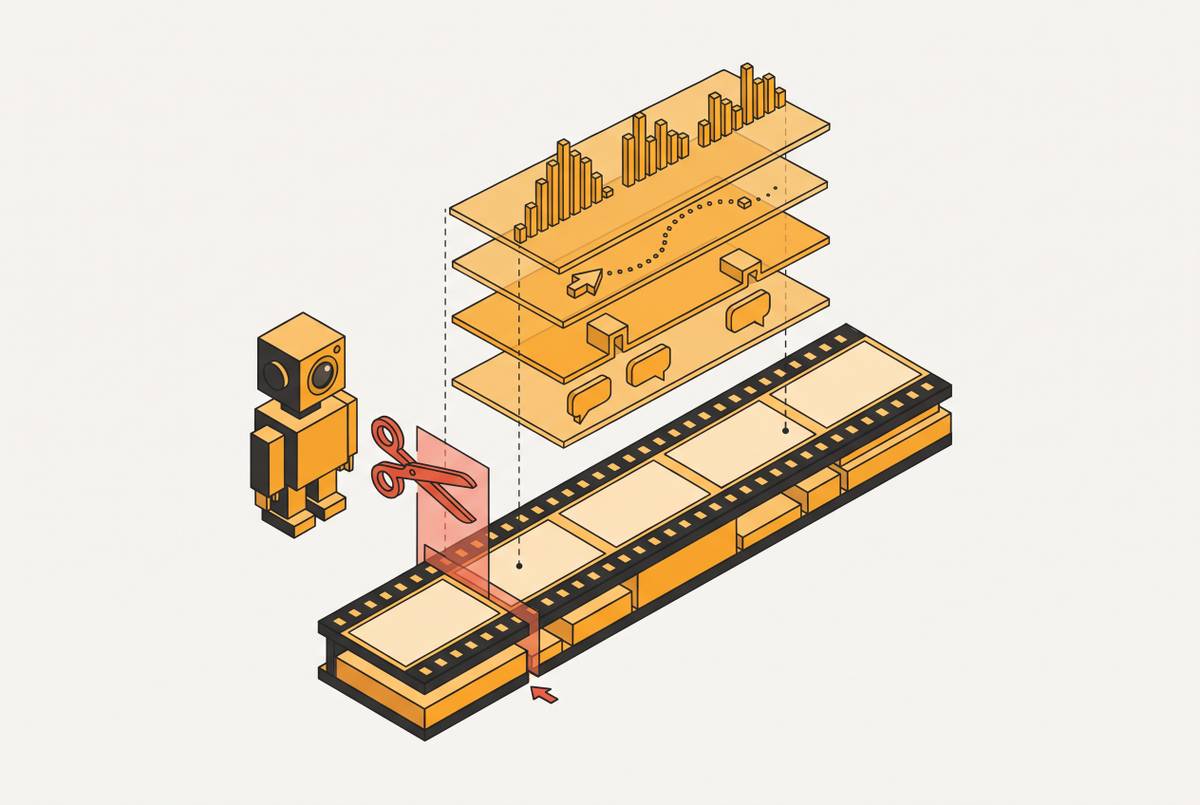
Separate editable layers create a different set of choices. Narration, captions, and screen content can be treated as parts to revise. Recording the screen and camera as separate tracks also allows the layout to be remixed after capture. That distinction goes beyond cosmetic polish. Separate editable layers let a creator change how an explanation appears without repeating what was already said well.
When a product interface changes, a locked composition can force the creator to re-record every clip that shows it, even if the explanation is still correct. Separable layers allow screen content to be updated without touching the narration. The script has not expired just because a button moved. Across a whole library, keeping useful material makes videos easier to maintain as well as easier to edit the first time.
How the reshoot loop multiplies the time cost async was supposed to eliminate
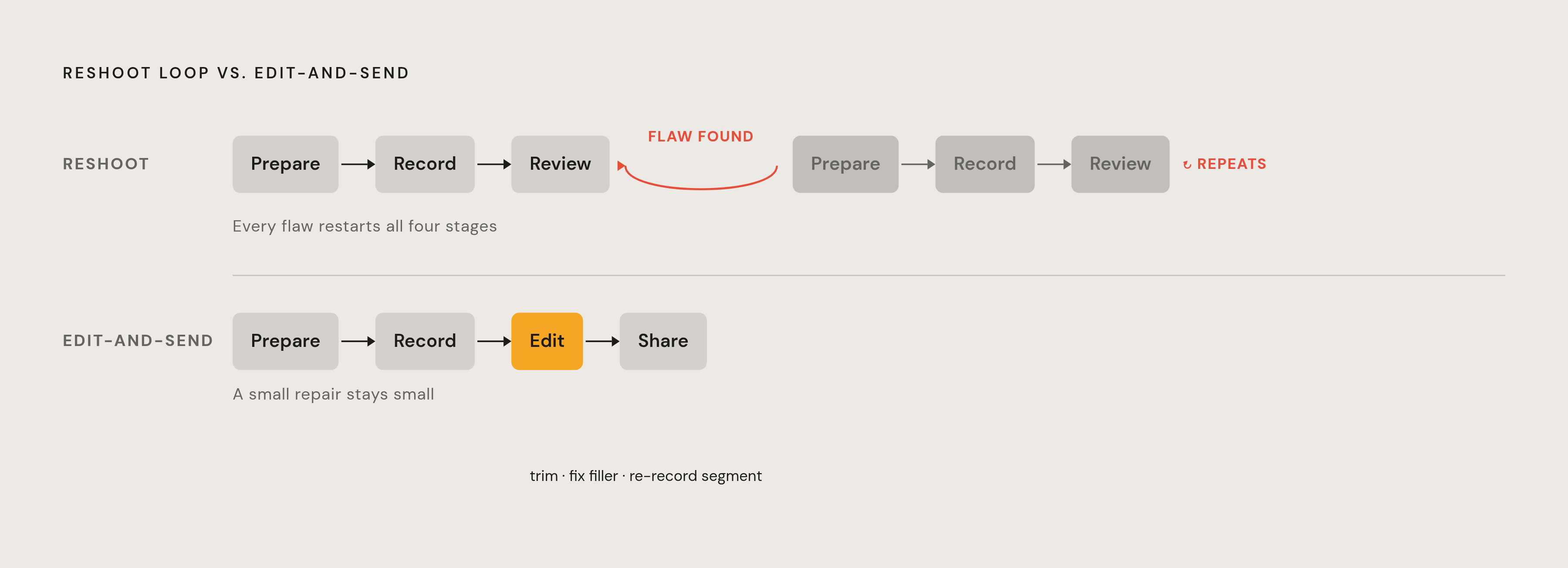
A reshoot costs more than the minutes spent speaking. It restarts preparation, capture, review, and sharing, so the creator repeats work that the original recording had already completed. The next take still needs checking. If another small flaw triggers another restart, the cost grows across the workflow. Async was meant to free people from the work of scheduling meetings, but repeated takes turn it into an audition.
Shorter recordings are more likely to be watched to completion, while pauses and repeated explanations can delay the point viewers came to find. An unedited clip may thus save the creator an edit but take more of the audience’s time and attention. If viewers miss the key information, another recording to “explain it better” can follow. The original shortcut has produced more work at both ends.
For SaaS onboarding and customer education, that missed point can defeat the purpose of the recording. A tutorial is useful only if its explanation reaches the viewer. Sales and product demos face a related problem. A rough, unedited recording can signal low production values while prospects are forming their first impression. These uses benefit from removing the distractions between the audience and the explanation.
The cost also accumulates across a customer education library. When a team remakes every affected lesson from scratch after each interface update, it takes on the same production work again and again. Each clip becomes another maintenance obligation. An editing layer that survives content updates lets the team preserve accurate narration and other reusable material instead. That is where the economics of async extend beyond one employee saving time on one meeting.
Which screen recording tools have built-in editing, and where does each fit?
The useful comparison begins with what happens after capture. Sharing speed alone says little about whether someone can remove a mistake, clean up speech, change a layout, or revise screen content. Those are distinct “editing” capabilities. AI features need the same close look, because finding a passage and changing it do different jobs. A searchable transcript is helpful, but it is not proof of a transcript-based editor.
Vidcast, from Webex, fits teams that need to organize and revisit recordings more than refine their visual production. It supports comments, reactions, editing, AI-assisted search, chapters, and video highlights. Its free Basic plan supports recordings up to 15 minutes at 720p. Searchable organization is its clearest strength here. Those features help teams return to recorded information, but the presence of editing does not by itself establish separate screen and camera tracks or full control over the composition.
Slack Clips works well for messages that belong in Slack. Slack supports camera recording, screen sharing, and uploading an existing video, with captions and transcripts available for viewers. It also makes Clips available across its subscriptions without a separate purchase. That keeps recording close to the conversation. But the documented features for recording and watching clips do not show that the tool has advanced editing, independent visual layers, or word-level changes to the underlying video.
ClickUp Clips fits a workflow where automatic transcription is useful within ClickUp. ClickUp states that ClickUp Brain AI automatically transcribes Clips when the AI ClickApp is enabled in the Workspace. The available capability is transcription, and the ability to edit the recording by changing transcript text remains unconfirmed. For a team evaluating AI features, the distinction prevents a helpful reading aid from being mistaken for a production tool.
Vidcast offers editing and searchable organization, Slack keeps clips close to team conversation, and ClickUp adds conditional AI transcription. None of those descriptions establishes the entire advanced recording-editing-sharing workflow. For corporate tutorials that need reusable screen content and polished explanations, the deciding criteria are the repair controls themselves. The tool needs to preserve the good parts while changing the bad ones.
Why the full workflow needs to live in one tool, not across three
Even when a separate editor can make the repair, getting there can discourage it. Moving between a recorder, an editor, and a sharing platform adds handoffs and decisions to a task that was supposed to be quick. At each handoff, the creator may give up on the edit and start recording again. Capability alone does not remove that friction. Making a fix in another tool may still feel harder than recording again the usual way.
When trimming, filler-word removal, layout adjustment, and caption generation are available as soon as the take ends, the creator can address the defect while the recording is still the task at hand. A small repair stays small. Teams choosing a tool should weigh how quickly they can get to an edit as well as how many editing features it has. The useful feature is the one people can reach before deciding to restart.
Transcript-based editing makes that path more approachable for non-editors. Working with spoken words as text is familiar in a way that a traditional timeline may not be, so removing a repeated explanation need not feel like learning a second profession. That lowers the barrier to a targeted correction. It is especially relevant for the person who knows exactly which sentence went wrong but does not know how to navigate a video editor.
Sharing completes the workflow when the edited video is immediately shareable without a rendering queue. The creator can record, repair, and send in one session, rather than decide whether the edit is worth another stage of work. For teams in that position, the recommendation is a single workflow with controls to trim, re-record one segment, and adjust the layout without disturbing the rest. The tool should make correction the natural next step.
Recording practices that reduce the need to edit in the first place
Good preparation complements a workflow with editing controls. The most useful starting point is a brief outline that puts the explanation’s points in order without requiring a full script. It gives the recording a spine. For long or complex processes, smaller logical chunks reduce the pressure to deliver everything flawlessly in one sitting. A problem in one chunk can then be fixed without disturbing the others.
Audio deserves attention before the recording starts because it is among the least recoverable problems afterward. Even a modest external microphone can sound much better than a built-in laptop mic, and viewers are less willing to put up with poor audio than lower video resolution. Cleanup still has limits. Better source sound reduces the amount an editor must rescue and lowers the risk of losing an otherwise useful take to severe clipping. Preparation here protects the explanation itself.
Recording in 4K for delivery at 1080p helps keep text and interface details sharp when an edit zooms into the screen. A punch-in can then direct attention or cover a cut without turning the interface into a blur. Captions address a different need. They make the recording accessible to hearing-impaired viewers and useful in sound-off settings such as open offices, while automatic generation removes the manual work that can tempt creators to skip them.
These habits aim for a cleaner take. The remaining stumble still deserves a proportionate response. When the workflow makes that response a quick edit, the creator can spend time improving the explanation.