Every Trim Annotation and Export Feature Business Teams Actually Use Compared Side by Side
Vidyard, OBS, and ShareX compared by workflow, not feature checkmarks.
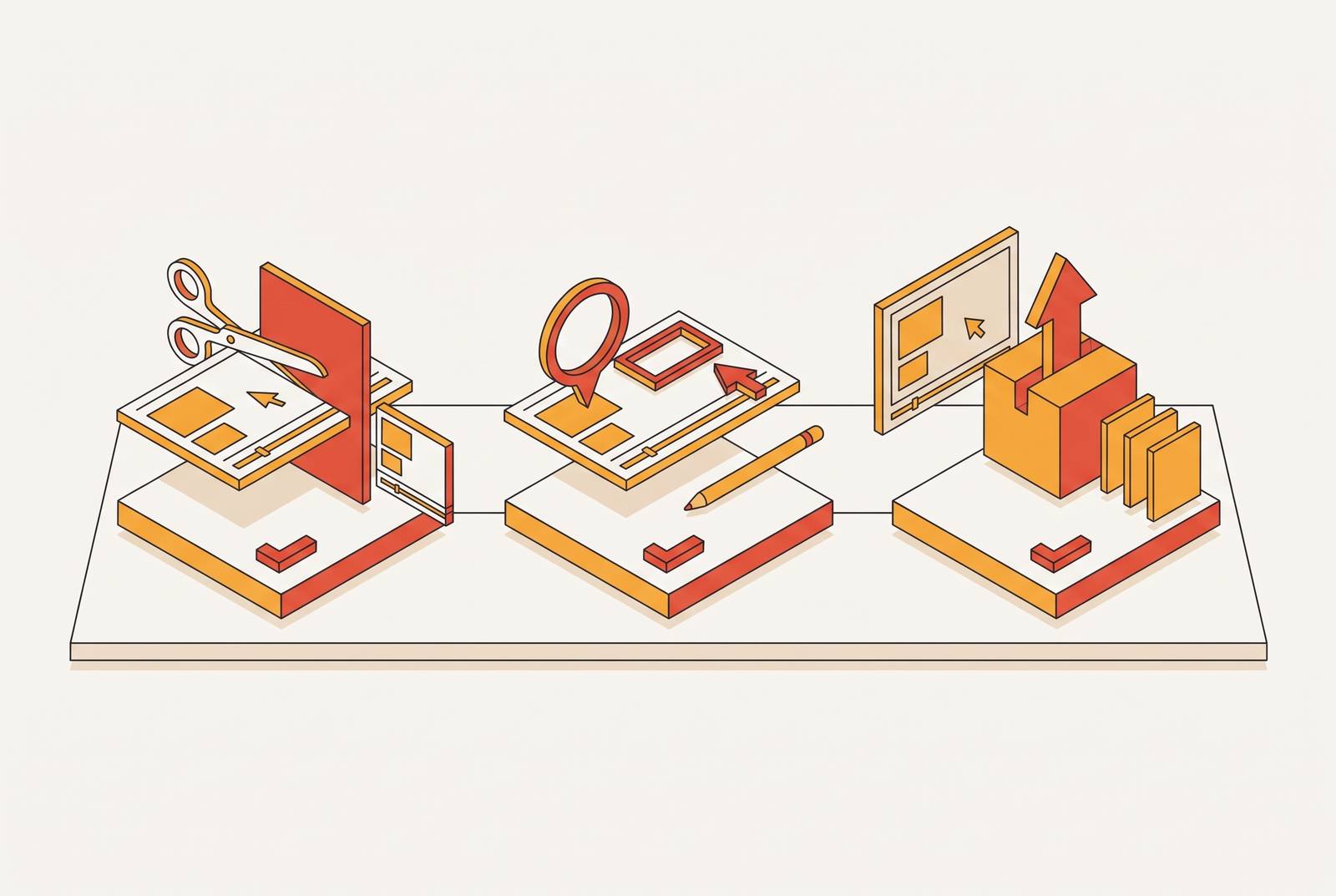
Vidyard is a screen recorder with built-in, trim-focused editing for business teams that need quick updates and shareable links without switching apps. For polished demos or reusable tutorials, an all-in-one screen recorder needs editing, annotation, and export capabilities that fit the workflow and finish the team’s job.
Why spec sheets fail business teams shopping for screen recording tools
Comparing screen recording tools can leave a team with plenty of checkmarks and no clear answer. Two products may both list “editing,” yet only one may support the cuts the team needs without another app. “Annotation” can conceal an equally large difference between marking a capture and guiding someone through a dense interface. The checkmark is doing suspiciously heavy lifting.
A tool might record cleanly but need a separate editor, or offer useful annotations while exporting in formats stakeholders cannot open. Counting features gives those obstacles as much weight as things the team will never use. A useful comparison instead starts with real business workflows.
The three workflows that drive almost every business team's requirements
Async video messaging replaces meetings and status emails with recordings that colleagues can watch when convenient. Its priority is speed-to-send. Near-zero friction to record and share, basic trim, and an instant link usually contribute more than deep editing controls. A routine update should not need a production department.
Demo and sales videos are for a different audience. Control over the screen-plus-camera layout, annotations that show where to look, and high-quality exports in a choice of formats help make a recording work for customers. Here, presentation is part of the job. The video may need to work as an embedded demo or an attachment as well as on the recorder’s own sharing page.
Reusable, searchable libraries benefit from transcript-based editing, captions and subtitle export, chapter markers, and a practical way to update recordings when the product changes. Return visits are part of the design. A tool built for quick messages can therefore fall short when asked to produce polished demos or maintain a training library.
What transcript-based editing actually changes about trim and cut speed
For narrated updates and tutorials, transcript-based editing replaces much of the hunt through footage with reading. The author deletes words or sentences from a transcript, and the corresponding video is removed. That lowers the skill floor for business users because the task resembles editing a document. The sentence becomes the handle for the cut.
Timeline-only editors ask more of the person making that cut. They require scrubbing, precise in and out points, and familiarity with track-based editing, while offering substantial control. The author reads the recording, highlights filler or tangents, and lets the software perform the video cut.
But is AI auto-trim good enough already? For a fast cleanup, it may be. Automation-first tools detect and remove filler words, silences, and repeated takes without user intervention, making them the fastest option but the least controllable. Transcript editing preserves the author’s judgment at comparable speed for many non-editor tasks, especially narrated demos and talking-head recordings.
Annotation tools that direct attention versus annotation tools that just decorate
A useful annotation tells the viewer where to look or how to navigate. An arrow or callout box can identify a specific interface element, but its usefulness depends on how it appears. Static and animated callouts behave differently, as do manually placed and automatically triggered ones. “Includes annotations” barely begins to describe the capability.
Cursor emphasis addresses a more specific problem. In a dense software walkthrough, zoom-to-cursor or click-emphasis effects magnify the area where the presenter clicks. Step labels and chapter markers serve another purpose by breaking a long recording into navigable sections. That helps viewers who come back find an answer without replaying the whole tutorial, like finding a recipe without sitting through dinner.
Live drawing has a different role again. It helps a reviewer mark up feedback but is less relevant to a polished outbound demo. ShareX pairs recording with a built-in post-capture pipeline that includes drawing, annotation, and image exports, with separate recording modes for video and GIF output.
For customer-facing demos, the frame itself also directs attention. Layout-level intelligence can switch between full-screen, camera-forward, and screen-dominant views based on what the presenter is doing. Annotation without layout control is only half the production job.
Export and delivery requirements that differ by workflow and audience
An internal update, a sales-page demo, and compliance-sensitive training stored in an LMS do not have the same destination. Export is therefore a bundle of decisions about format, hosting, security, and analytics. The audience sets the requirements. A recording is not finished merely because it plays inside the tool that made it.
Format and container determine where that recording can go. MP4 serves broad compatibility, WebM supports browser embedding, and GIF suits inline documentation. A single-format tool constrains downstream use even if its recording controls are excellent. Hosting presents a separate trade-off, because an instant shareable link removes the attach-and-email step, while file-only exports leave delivery elsewhere.
Vidyard has sharing pages hosted on its own or branded subdomains, so teams can quickly send a link. Its export format and container controls are less granular than those of encoder-first tools. Vidyard’s encoding settings specify fixed codecs and bitrates without user-selectable container or codec choices on export.
Access and measurement need separate scrutiny too. Password protection, domain restrictions, and expiring links are relevant to sensitive internal material and enterprise compliance. Viewer drop-off, watch-through rate, and CTA clicks can help sales teams, but they do little for internal documentation and may raise privacy concerns. More tracking is not automatically a better package.
Burned-in captions are part of the picture, whereas separate SRT or VTT files can be edited or submitted for accessibility review. That distinction affects accessibility compliance and LMS compatibility. A checkbox marked “captions” cannot settle it.
How the comparison stacks up across async messaging, demo creation, and documentation
For async messaging, Vidyard is the strongest fit in this comparison. Browser-based recording, webcam overlay, instant publishing to shareable watch pages, and trim-focused editing support quick updates and coaching clips. It connects recording, basic cleanup, and delivery without demanding a production workflow. Its limits become more significant when the goal shifts from sending a message to polishing a presentation.
For demo composition, OBS Studio gives teams the most control of the tools described here. Scene collections and source filters support reusable overlays and per-source adjustments without re-authoring layouts. Setting up those controls takes work, however, and composition controls do not establish an end-to-end editing workflow by themselves.
Vidyard works for simpler demos that need less production work. Its drawing, camera-bubble, backgrounds, and teleprompter features support presentation, while its trim-focused editor handles basic cleanup. Compared with a composition-led setup, its weaknesses are export format control and advanced capture configurations for dense interface walkthroughs. The choice turns on how much staging the demonstration needs.
ShareX is strong at capturing documentation again and again. It is free and open source, with hotkey-driven capture, flexible capture sources, drawing and annotation tools in its post-capture pipeline, and video and GIF recording modes. That supports frequent capture work without a focus on design polish. It has no AI-assisted editing, so its capture depth should not be mistaken for transcript-driven maintenance.
Vidyard leads the quick-message workflow described here, OBS Studio suits controlled demo composition, and ShareX suits repeat capture for documentation. None leads across all three scenarios. For a buyer seeking a screen recorder with a built-in editor, the decisive distinction is whether that editor can handle trimming and the other editing needed to finish the intended tutorial or demo.
Where AI automation shifts the documentation maintenance problem
When the product changes, recordings need to change with it, and that upkeep can be harder than creating the library in the first place. AI-assisted tools are beginning to reduce updates from hours to minutes. For high-volume documentation, maintenance therefore changes the buying calculation.
Guidde exemplifies click-level capture automation through Magic Capture. It records every click, keystroke, and navigation step, then transforms the recording into a polished video guide with AI narration across a wide range of voices and in 50+ languages. The emphasis is on documenting a process as it happens.
Synthesia addresses another part of the same workload. It turns text scripts and screen recordings into studio-quality videos with lifelike AI avatars as presenters. SaaS companies use it to build searchable video help centers, localize tutorials into dozens of languages, and update documentation without booking a camera crew. Its focus is avatar-led multilingual training at scale.
The two approaches solve different production problems. Both shift the comparison toward how a team creates and refreshes a library over time.
For tool selection, that favors automation-first products when internal documentation volume is high. Customer-facing demos have a different requirement when a real presenter needs to remain in frame. Those teams benefit more from tools that preserve the presenter while automating editing overhead. AI is useful here when it removes unnecessary work while preserving the judgment the team still wants to exercise.
The decision rule that cuts through the comparison: match tool to workflow, not feature count
Tool selection starts with the workflow the team runs most often and the tool designed around it. The recommendation for async updates is to prioritize instant links, basic trim, and camera-plus-screen capture. Editing depth is secondary when the job is to get a clear message out quickly.
For polished customer-facing demos, other features come first. Prioritize layout control, annotation depth, export quality, and the ability to edit without a separate tool. Keeping the full workflow in one place reduces friction enough to increase output. Composition strength alone is not a substitute for the editing and delivery steps that follow recording.
For a maintainable documentation library, prioritize transcript-based editing, separate caption files rather than only burned-in captions, chapter markers, and AI assistance that reduces update costs. A recorder that makes the first tutorial easy but leaves every revision laborious solves only the opening task.
An all-in-one screen recorder for business teams needs to take their most common recording through the necessary cuts, attention cues, and delivery requirements without an avoidable handoff.